AN IDEA YOU CAN WALK INTO
Tell Antelier what your Unreal level should become.
Tell the agent in Unreal what you want to see. It changes your level while you watch, tries it out, and saves every turn so you can go back.
The Antelier dock inside Unreal Engine 5.8 on Windows: choose Tools → Open Antelier. It is experimental: it has worked on our machines, which does not promise it will on your project. Older packages may open only the browser. Making a web world instead of an Unreal level? Setup has its own, shorter path.
Unreal stays the home of your scene. Antelier does not sync your project to the cloud, so keep it backed up the way you normally would.
01 / GET CONNECTED
Your project. Chat beside it.
Keep Antelier running, then use its dock inside Unreal. You can also open the full workspace in your browser.
- Get the Windows package. Sign in with Google; the download is on the page you land on. Extract the entire ZIP and run Antelier.exe. Keep its files together.
- Set up the model connection. Antelier works through your own Claude Code on this PC. Follow the Windows setup steps. Signing in to a website does not connect it.
- Connect a project. Run Connect Unreal.exe. Choose Yes to make a new world and type its name, or No to pick a .uproject you already have (close it in Unreal first). Connect Unreal finds Unreal 5.8 for you and asks only when it finds none or several. Check the one summary screen and click OK. Unreal opens the project.
- Open the dock. Choose Tools → Open Antelier in Unreal. The first time, the panel asks you to sign in. Choose Sign in to Antelier: your browser opens antelier.co. Sign in with the Google account for your Antelier workspace. The page shows your name, the project and an 8-character code. Type the code into the panel within five minutes. Each sign-in gives a new code that works once, only for this project on this computer and only for your account. Open in browser connects a browser the same way. If the panel says account sign-in is not available yet, nothing is connected.
- Check that it sees your level. In the dock, ask: “Describe this level and three changes you could make. Don’t change anything yet.” The answer should be about your own scene.
02 / YOUR FIRST REQUEST
Ask for something you can walk into.
Use a new test world for your first try. Say what someone should see and be able to do, and what must stay as it is. For example:
Build a quiet courtyard around a copper sculpture, with a console beside it. Near the console, pressing F should raise the sculpture and R should put it back. Keep my player start.
That is the kind of request to make, not a promise that it will come out right the first time. Then:
- Send it. The agent works in the open level, so you see it change as the turn goes.
- Let it try its own work. It plays the level and checks what it built before it finishes.
- Play it yourself. Press Play in Unreal and look. A passing check or the agent’s own summary is not a playtest.
- Ask for something different. For example: “Move the console out of the arrival sightline. Keep the sculpture’s movement.”
- Go back if you want to. Every turn is saved as a version. Undo turn restores the level files exactly as they were before that turn.
Usage: the agent uses your own Claude Code sign-in, so a turn counts against your Claude plan, API key or cloud account. What a turn tends to cost, and the backstop on each one, is under How much Claude usage does a turn take? You can stop a turn; usage may already have happened.
03 / FIND YOUR WAY BACK
When something gets in the way.
Tools → Open Antelier is missing
Check that you opened the project configured by Connect Unreal.exe. Close it and rerun the connector setup from the same package, review its changes, then reopen. Installing or updating the connector requires the editor to be closed.
The dock cannot connect or asks for a code
Start Antelier.exe from the package connected to this project, then click Reconnect above the dock. Reopen the dock from Tools → Open Antelier after closing it or restarting Unreal. It does not reopen automatically. Choose Sign in to Antelier for a new five-minute code; an older code stops working once you start a new sign-in. Signing out of your Antelier workspace also signs this project out the next time the panel opens. For access recovery, My projects offers Download private connection file for a project you can access. Keep that file private and use it under Advanced recovery in the panel, or when Connect Unreal explicitly asks for it. Normal sign-in uses the one-time code. Do not put codes or recovery keys in chat, screenshots or public reports. If the key was replaced by workspace recovery, use the new connection file from My projects.
Antelier says Claude is not connected
Claude Code has to be installed with its native Windows installer and signed in on this PC. The steps, and what to do if you installed it after starting Antelier, are in setup help.
Report a problem: email hello@antelier.co with the package name, your Unreal version, what you asked, what happened and any exact error. A screenshot helps. Leave out recovery files, keys and private project material. There is no in-editor support chat in this preview.
04 / THE WINDOWS PACKAGE
Start, stop, update and your data.
Start: Antelier.exe starts the local workspace and opens your browser. Connect Unreal.exe starts it too when it is not running. Opening either again uses the server that is already running, so one package never runs two copies. Advanced options (port and data folder) are in Start-Antelier.ps1. The first time, Windows shows Windows protected your PC because this package is not code-signed yet. Setup shows what to check and what to click. If anything differs, do not run it, keep Windows protections on and email hello@antelier.co.
Stop: save your work, then open Stop Antelier.exe from the running package. It asks unfinished AI work to stop and shuts down the local server. It does not close Unreal. A stopped request may already have used Claude usage; Antelier does not retry it. Closing the browser or Unreal does not stop the server.
Update: save your projects and close Unreal. Extract the new ZIP into a separate folder; never replace a running package. Open Stop Antelier.exe in the old folder, then Antelier.exe in the new one. The same data folder keeps your saved projects and connection files. Run the new Connect Unreal.exe once for each closed project to update its plugin; the previous plugin stays in that project’s Saved/Antelier/install-backups folder. Keep the old package until your work reopens correctly. An older package may not read data written by a newer one.
What Connect Unreal changes: it adds the editor-only AntelierBridge plugin and turns on PythonScriptPlugin, EditorToolset and UMGToolSet. It does not edit your levels or game content and makes no AI request. The original project file is kept as .uproject.before-antelier. It uses the Python that comes with Unreal; nothing else to install. A project already connected to another Antelier workspace is never silently reconnected.
AI requests: Antelier runs Claude Code as you signed it in and never asks for or exports your Claude credentials. Each change you send has a usage backstop, and there are no automatic retries; the numbers are in setup help. A turn stops if Claude Code sends nothing for several minutes, or after two hours.
Your data: projects are stored in %LOCALAPPDATA%\AntelierCreatorPreview\data, or the folder you chose with Start-Antelier.ps1. Deleting that folder deletes your saved projects. Optional usage measurement is off until you allow it. When on, named steps and failures go to Antelier’s website; prompts, project content and screens do not. You can turn it off without losing access.
05 / THE CURRENT BOUNDARY
What is not established yet.
Clean-machine setup and independent first-use testing are still in progress. There is no Unity or Roblox connector, no native Mac or Linux qualification and no cloud sync of Unreal projects. What the agent can change depends on the connector you have installed, so judge a result by playing it, not by the agent’s summary or a check alone.
The web builder, the Windows app and the Unreal connector are separate surfaces, and this guide covers only the Unreal dock. Broader ideas are directions, not shipped features.
Back to start ↑Earlier review panel: archive, September 23, 2026 edition
ARCHIVE · SEPTEMBER 23, 2026 EDITION
The earlier review panel.
Before the dock, you asked in a chat, reviewed a proposal and pressed Keep. Now the agent edits the level live and every turn is a version with Undo turn (see Your first request). The chapters below are kept as they were written, for the manual editing page that opens with Open in browser and for the dated example. Where one talks about proposals, Keep or Discard proposal in the chat, it describes the earlier panel; do not follow it for the dock.
EARLIER PANEL / A FIRST INTERACTION
A first interaction, end to end.
Use a new test world for your first attempt. Try this in Create → Message:
Create a small kinetic exhibit. Add a copper sculpture, a separate teal console, and status text. Near the console, F should raise the sculpture and R should reset it. Add a screen guide linked to that status. Keep my player start and existing environment. Propose the complete interaction together.
- Send message. Antelier supplies the current scene to the selected model. A reply may explain, ask a question, inspect the scene, or propose supported edits.
- Review the proposed changes. Check which objects change, their positions, and what the interaction will do. Nothing in the proposal has reached the scene yet. Choose Discard proposal if it is wrong.
- Keep in Unreal. This applies the reviewed proposal to real native actors and supported assets. In Unreal’s World Outliner, search an object’s proposed name, select it and press F to frame it. You can also select it in Antelier’s Edit tab and choose Frame in Unreal.
- Try the actual experience. Click Start Play, give the Unreal viewport focus, approach the console and try its controls. Stop Play before editing. The F key frames a selected actor in editor mode; inside this interaction’s Play session it toggles the sculpture.
- Revise something meaningful. For example: “Move the console out of the arrival sightline. Keep the sculpture’s movement and all status links.” Review and Keep again.
- Save level. Keep applies an edit; Save level writes the current level to disk. Then close and reopen your project to confirm your saved result.
Make behavior repeatable: in Checks, save expectations independently of the AI proposal and rerun them after edits. A model’s explanation or reviewer approval is not a passing playtest.
EARLIER PANEL / TOOL REFERENCE
What the earlier panel could make and change.
AI + controls means you can request a supported change in chat or use the relevant form. Controls means use the workspace yourself; the AI cannot perform that operation for you. Imports and Keep remain explicit actions.
| Capability | Where / access | What it does and its boundary |
|---|---|---|
| Scene objects | Edit · AI + controls | Add engine primitives; change names, positions, rotations and scales. Native coordinates are centimeters. General actor deletion and arbitrary object types are not AI operations. |
| Linked creation | Create · AI | Propose new objects, their control, status text and guide together in one review on an updated connector. Dependencies are ordered internally; you do not need to write object IDs. |
| Two-state interaction | Add an interaction · AI + controls | F toggles a supported mesh between two positions near a trigger; R resets it. Configure radius, offset, transition duration and status wording. Controls share these keys: keep activation areas separate. Not arbitrary game logic. |
| Proximity movement | Add a proximity mover · AI + controls | A native Blueprint cube moves by an offset while the player is near another actor and returns on exit. This is an instant two-position movement, not a character animation system. |
| Scene text | Add scene text / Edit · AI + controls | Editable text, color, size and alignment in the world; controls can update linked status text. World text is different from a screen interface. |
| Player guide & menu | Add player UI / Add visitor menu · AI + controls | A screen guide with instructions and live scene status; a single-player M-key pause menu with Resume and Exit. Not arbitrary buttons, inventory, multiplayer UI or a general widget designer. Native Blueprint/widget styling remains editable in Unreal. |
| Materials & water appearance | Edit → Surface · AI + controls | Color, roughness, metallic and emission; imported texture sets with UV tiling; a water surface with animated ripple normals. Water appearance is not fluid simulation, buoyancy or geometry waves. |
| Lighting & exposure | Add a light / Edit · AI + controls | Point, spot and rectangular lights; supported sun/sky edits and exposure compensation. Inspect the actual rendering: numeric settings do not establish the final appearance. |
| Mesh assets | Assets · import with controls; place/replace with AI + controls | Stage GLB files up to 64 MiB, record credits, explicitly import, then place meshes or replace supported existing geometry. Review bounds and scale. Import does not recreate a complete source hierarchy, rig, animation or guaranteed collision. |
| Texture sets | Assets · controls | Import PNG base color and optional normal/roughness maps. Up to 4096 pixels per side and 16 MiB per map; record the normal-map convention and credits. Apply ready sets through Surface or chat. No texture synthesis in this tool. |
| Audio | Assets / Add a sound · controls for import; AI + controls for actors | Import 16-bit PCM WAV, mono/stereo, 8–96 kHz, up to five minutes/32 MiB. Place supported ambient sound actors and edit volume, pitch and start-on-play. Looping, attenuation and cues remain native-owned. Listen to the output; playback state alone is not an audible check. |
| Scene & Blueprint inspection | Create / Edit | The AI can inspect the scene, read supported actor Blueprint graphs and run existing checks. A bounded control-graph repair is available; general Blueprint/C++ programming and arbitrary script execution are not. |
| Visual context | Capture editor view / Create | Capture the editor viewport and explicitly include a current view in a message. Saved Checks can capture a controlled player camera. These are snapshots, not continuous vision; a scene capture does not by itself prove screen UI or input works. |
| Project guidance | Create → Project guidance · controls | Import text guidance, review project copies, save and enable them for new messages. Source files are not live-synced. Enabled guidance goes to the author and optional reviewer; referenced commands/files are not executed. |
| Play & saved checks | Toolbar / Checks · controls; AI can run saved checks | Real Play in Editor checks for actor positions, supported interactions, HUD/menu/audio state and player views. Optional controller-injected input is not equivalent to physical keyboard input. The AI cannot rewrite your saved expectations. |
| Review, save & Undo | Review / toolbar · controls | Keep or discard a proposal, save the current level, undo the last kept edit. Conflicting native changes block stale Keep/Undo. This is not unlimited version history; back up important projects separately. |
| Windows player delivery | Delivery · controls | Write recipient instructions, Save and build player, then download a frozen runtime ZIP for supported Blueprint-only projects. Extract the whole archive and try it on the recipient machine. Project-local runtime plugins/native-code projects need their own Unreal build workflow. |
EARLIER PANEL / WORK WITH THE AI
Give it intent, then evidence.
- Name the result and what must stay. “Build a quiet courtyard around my sculpture. Preserve the player start and existing controls.”
- Describe behavior, not just appearance. “Within two meters of this console, F raises that platform over three seconds; outside that radius, it does nothing.”
- Use the same conversation to refine. “The console blocks the arrival view. Move it to the right without breaking the control.” Select an actor to make the intended target clearer.
- Show the actual problem. Include a fresh captured view for visual changes. For a broken interaction, describe expected versus observed behavior and run the saved checks.
- Check scope before Keep. Broad requests may require several proposals. If a capability is missing, ask what supported steps are possible rather than accepting scenery as proof of behavior.
Usage: messages use the configured local Claude connection. Author tool turns and an optional second-model review share the displayed allowance. Stop generation if needed; usage may already have occurred. Optional review checks the proposal, not independent gameplay. Fable/best can require paid usage credits and an explicit acknowledgment; do not select it assuming ordinary subscription coverage.
EARLIER PANEL / SEE THE WORK
Dawn Beacon: creation and revision.
This developer-operated example began in a blank Unreal level. One AI request proposed the sculpture, console, interaction, status and guide together. Two subsequent requests improved the layout, lighting and text. Each proposal was reviewed and kept before it changed Unreal.
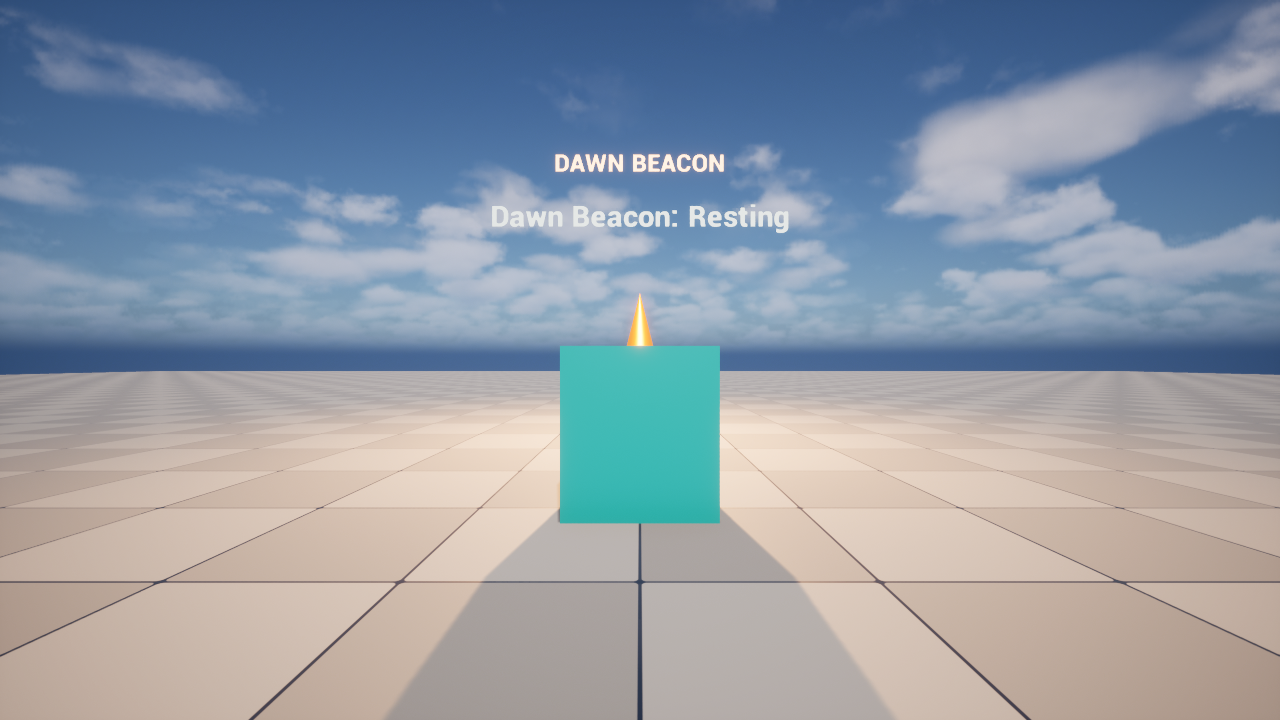
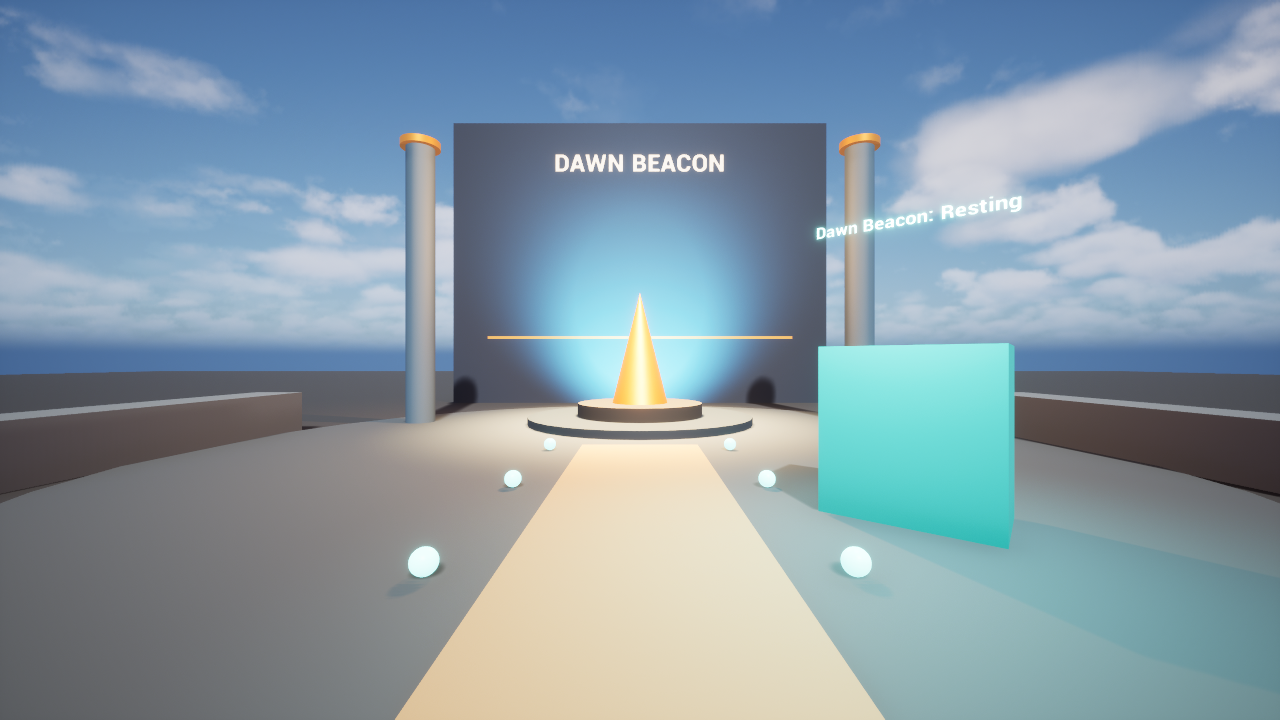
Observed: 38 saved actors, seven passing native checks including an arrival capture, and a built/downloaded Windows player. A separate linked-creation test retained its scene and checks after a full editor restart and restored the original scene with Undo.
Not established by this example: physical keyboard use, independent recipient completion, clean-machine setup, consistent professional output or success on your own project. The images are actual controlled Unreal Play captures, not mockups.
EARLIER PANEL / KEEP YOUR WORK
Save, return and hand it over.
Save: use Save level after Keep. It saves current native level edits, including work made directly in Unreal. Keep your project and imported assets backed up; browser access recovery does not restore missing native files.
Return: reopen the same Antelier package and Unreal project, then Tools → Open Antelier. In a different browser, choose Open in browser in Unreal and sign in again for a new code. My projects can retain linked workspaces. If workspace recovery replaces access keys, download that project’s new private connection file from My projects and use it when the connector asks.
Deliver: stop Play, finish or discard a proposal, open Delivery, write the experience title and controls, and choose Save and build player. Use Open in browser to download the finished build, extract the whole folder and launch its named executable on Windows. Keep the adjacent folders together. The player does not require Antelier or Unreal Editor; platform/runtime requirements still apply. Play it before sharing. Editing the source later does not update an older ZIP.
Update: save, close Unreal before changing the connector, and follow Update in The Windows package. Do not replace a running installation. Local work is not automatically uploaded or synchronized.
EARLIER PANEL / FIND YOUR WAY BACK
When something gets in the way.
I cannot find chat or the AI’s edits
Open Unreal Tools → Open Antelier, then Create in the dock. Use Project actions for Save, Play and Undo, and Scene, selection and editor capture for inspection. Confirm the project and level names. Applied objects appear in Unreal’s World Outliner; search the names listed in the proposal and press F to frame a selected object. Before Keep, the changes exist only in the review.
Tools → Open Antelier is missing
Check that you opened the project configured by Connect Unreal.exe. Close it and rerun the connector setup from the same package, review its changes, then reopen. Installing or updating the connector requires the editor to be closed.
The browser cannot connect or asks for a code
Start Antelier.exe from the package connected to this project, then click Reconnect above the dock. Reopen the dock from Tools → Open Antelier after closing it or restarting Unreal. It does not reopen automatically. Choose Sign in to Antelier for a new five-minute code; an older code stops working once you start a new sign-in. Signing out of your Antelier workspace also signs this project out the next time the panel opens. For access recovery, My projects offers Download private connection file for a project you can access. Keep that file private and use it under Advanced recovery in the panel, or when Connect Unreal explicitly asks for it. Normal sign-in uses the one-time code. Do not put codes or recovery keys in chat, screenshots or public reports. If the key was replaced by workspace recovery, use the new connection file from My projects.
It says to stop Play before inspection
Click Stop in Unreal once, leave the level open, then Refresh scene in Antelier. The connector needs a stable editor observation before it can safely review changes.
Send message is unavailable
Read the message and usage count under Create. Check the local Claude login, remaining configured allowance, connected scene and whether another task or proposal needs attention. Direct editing does not require another model request.
Keep or Undo says the scene changed
Refresh and inspect your native work. Another edit may have changed an affected object. Do not overwrite it to force the old proposal through; discard a stale proposal and request a new one against the current scene.
An edit or build was interrupted
Do not resend it blindly. Inspect the current scene and recorded status first. Follow the interrupted-edit recovery guidance only after checking what Unreal actually retained. A failed build is not a usable download.
A check passes, but the experience is wrong
A check only measures its saved expectation. Check camera placement, physical controls, sound, UI readability and the actual recipient build yourself. Add an expectation for the behavior that was missed.